DMA 30 · Modeling
Draw-first blockout
Can you tell what the form is from its outline? Check two views before adding details.
Analog. Sketch a robot or prop from the front and side. Circle an overlap that might hide an important part. Warm up with a front and side sketch.
Start with the big shapes
A blockout is a rough model made from simple shapes. Its silhouette is the outer shape you’d see in a shadow. Check which parts overlap before adding detail.
Change the arm, then change the camera
At Front, switch from Tucked in to Extended. Then select Side and compare again. Which view shows the arm’s position more clearly?
Try the same check in Blender
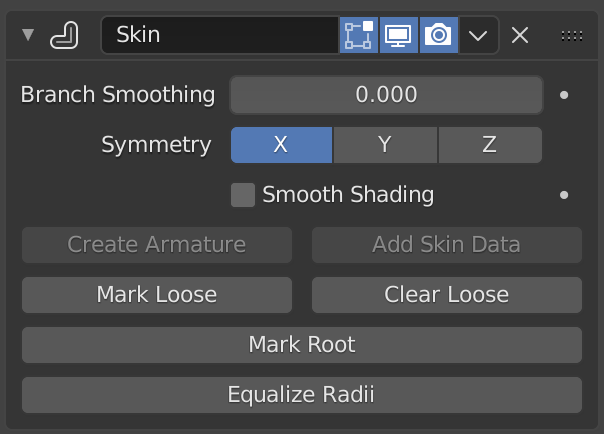
- Main form. Select a mesh in Object Mode. Press Tab in the viewport for Edit Mode, select all vertices, and use Mesh → Merge → At Center. Return to Object Mode to add Skin and put Subdivision Surface below it. In Edit Mode, extrude branches with E and adjust their thickness with Ctrl + A.
- Separate part. Return to Object Mode before adding a cube so it becomes its own object. Enter Edit Mode on the new cube and box-model a tool arm or accessory. Try two edits such as extrude, inset, loop cut, or bevel.
- Two views. In Object Mode, capture a front or three-quarter view and a side view. Rename the objects and save a versioned
.blend.
 View full size
History · A hand built from polygons
As a student at the University of Utah, Ed Catmull made a plaster cast of his hand and marked it into polygons for A Computer Animated Hand (1972). Breaking a complex hand into simple faces let a computer display and animate it. Rotate the robot blockout and look for which large forms do the most work in the silhouette. Computer History Museum · Ed Catmull oral history (PDF)
Check the robot’s outline
Read what changes in the outline
Make the comparison from the front first. With the arm tucked in, it merges into the body’s outline. With the arm extended, it projects beyond the body. From the side, the outline remains about the same width because the arm moves along the line of sight.
Rough. Try two placements for a large part of your model. Finalize. Keep the one you can read in the shot and note which view helped you decide.