DMA 2 · Introduction to Digital Media Arts
Make a scene respond
Take an idea from paper to a motion comic, then turn it into something an audience can try.
Start with one button rule
See it. In the clue demo, the clue starts hidden.
Try it. Sketch before and after on paper, then choose Reveal the clue and tap Test the input.
Check it. Explain which action made the clue appear. Tap Reset to try again.
Jump to a topic
Catch up after an absence
- What we practiced. Find the step you missed in the current class module, then open the matching practice lab.
- What to try. Repeat one comparison. For example, test what changes after a tap. If you missed team work, ask for the current version and one visitor action you can work on.
- What to check. Try the action from the starting state. Bring a sketch or screenshot of what changes and one note about what the visitor might still miss.
Input, state, and response
Quick read · Make a door open
Think of a door with an Open button. The tap starts the rule. The rule checks whether the door is closed and unlocked, then opens it.
- Trigger Tap Open.
- Condition Is the door closed and unlocked?
- Response Open an unlocked door. If it’s locked, keep it closed and show a hint.
Understand. An input is an action such as tapping a button. A state is what is true now, such as a clue being hidden. A response lets the visitor see or hear what the system did.
Analog. Draw one card for Waiting and one for Clue visible. Ask a partner to tap the paper button. Swap the card and ask what changed. Try the before-and-after paper warm-up.
Explore one rule
Test both outcomes. Which one gives the visitor enough information to keep going?
Waiting. The clue is hidden.
Technical · Find the rule in three web files
index.html holds the button label and picture. screen.css controls appearance and spacing. scene.js handles the click, updates the state, and shows the result. In the starter, find the button labeled Reveal clue and trace it to its click handler.
Sketch the states on paper or in your drawing app, then try the same rule in the browser starter. Test it with touch and by pressing Tab, then Enter or Space on the focused button. Get the browser starter · MDN · Introduction to events
Return to the button test · Find app controls for prototypes and projection
History · An artwork that responds to people
In Scott Snibbe’s Boundary Functions (1998), a line appears on the floor when a second person enters and moves as the visitors move. Describe the state before and after the second person arrives. Scott Snibbe · Boundary Functions
More labs, app handoffs, and projects
Show a change on paper
Open the shared Week 1 drawing and capture routine if you’re just getting started.
On scrap paper, draw what a visitor sees before and after one action. Label the action, such as “Tap the kettle” or “Lift the flap.” Cover the second sketch and reveal it when a partner points to the first. Ask what they noticed first and what changed. Working solo, cover and reveal the second sketch yourself and write down what changed.
Keep the sketch and one note about what you would change. Try the same idea in the input, state, and response lab or find another DMA 2 paper warm-up.
From paper to a playable scene
- Analog to digital. Sketch three beats on paper. Capture the plan, name the artwork, and save the editable file.
- Motion comic. Turn the beats into panels. Try a reveal, a hold, and an optional sound cue. The sequence can use illustration, type, photographs, or abstract shapes.
- Motion graphics. Animate one title, symbol, or transition. Reuse it to show what changed when a visitor acts.
- UX/UI and projection. Sketch the states of one interaction. Test it at arm’s length on an iPad and at projection scale.
- Game prototyping. Give the visitor a goal, a choice, feedback, and a way to retry. Rebuild one rule in an engine if the project needs it.
Start wherever your idea needs work. DMA 1 is recommended preparation. The paper and browser exercises are designed for beginners. Paper capture refresher · LBCC course outline
Five practice labs
- Input, state, and response
- Motion and sound as feedback
- Test the interface on an iPad and projector
- Hand off and repair an asset
- Play, revise, and reset
Read Understand, try one change in Explore, then open Technical for app steps or files. Draw a quick note before the test and mark the result you’d keep afterward.
Choose a subject for your own interaction or draw a random practice prompt.
Motion and sound as feedback
Understand. A reveal can tell the audience that an action worked and direct their eyes to what changed. The same two images can work as motion-comic panels or as states of an interface.
Analog. Draw a closed panel and an open panel, then mark the moment a cue should play.
Explore three versions of one reveal
Start with the immediate reveal. Try adding motion, then sound. What does each version help you notice?
The clue is hidden.
Technical · Reuse a motion comic or graphic
Use Inkflo’s motion comic export to carry a page into 2Dope, where you can adjust the panel holds or animate a cue. In another tool, keep the before and after as separate assets and label their order. Make sure the response still reads with sound off. See the export and handoff steps · Compare motion and frame rates
History · Plan an image around a sound
In Begone Dull Care, Evelyn Lambart and Norman McLaren made marks on film to follow recorded jazz. Use one beat as a timing anchor for your reveal. Animation history and the sound-cue lab
Test at two distances
For projection mapping, check the cue from where the audience will stand.
Understand. The person holding the iPad needs to know where to act. Someone across the room needs to see what changed. Test the same interaction at both distances.
Analog. Draw the controller and the projected wall in two boxes. Give each one a job. Try the near-and-far paper warm-up.
Explore the same cue at two scales
Show the clue, switch to the room view, then compare the small label with the large marker. The clue stays visible as you change views.
iPad view. The clue is hidden.
Technical · Set up the display and run a usability test
- Connect or mirror the iPad through the classroom’s display setup. For wireless mirroring, open Control Center and look for
 Screen Mirroring. Open the example and check that the full frame is visible.
- Give a visitor one goal and observe without coaching. Ask a classmate farther away what changed. Try with sound off and check keyboard focus on the interactive screen.
- Change one thing such as size, contrast, or how long the cue stays visible. Run the same test again.
Extend. Choose a flat surface, use a test image with visible corners, and align it to the surface. Check the view from where the audience will stand or sit. Apple · Connect iPad to a display · W3C · Basic accessibility checks
History · Projected film meets live performance
At Expo 58, Laterna magika combined live performers and projected film. A cue had to work for both the performer and the audience. Czech National Theatre · Laterna magika
Hand off and repair an asset
Understand. A filename and folder path tell the browser where an image lives. Keeping the original alongside the export lets a teammate revise the art later.
Analog. Label your sketch with the scene, what it shows, and the name you’ll give its export.
Explore a missing image
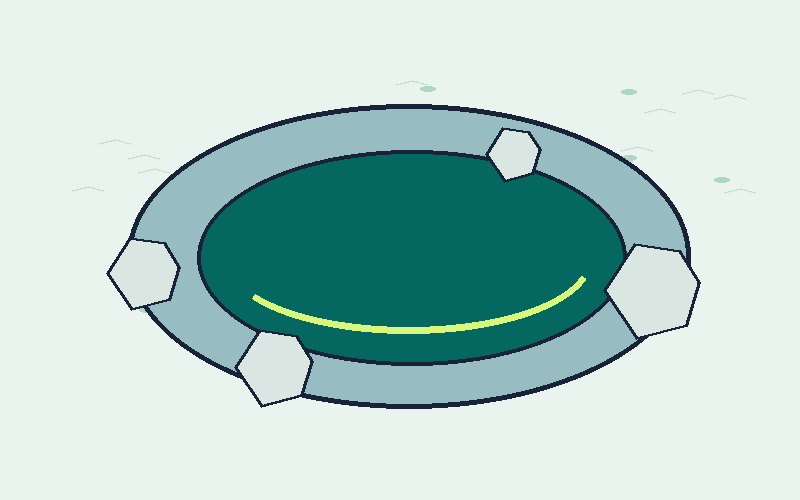
The image uses the relative path assets/tide-pool.png.
Image missing. Compare the two filenames.
Technical · Open the working and broken copies
Unzip the starter. Open index.html first, then open repair.html. Compare the image path in both files. Fix the path in the repair copy, reload, and check that the artwork appears while the game rules still work.
Keep the editable project, named exports, original sound, and asset credits in your own handoff. Download both copies
Choose what to export from Inkflo or 2Dope
- Motion comic. In Inkflo, export Motion comic (.2dope) and open it in 2Dope. Check the panel order and adjust the holds. Inkflo export options · 2Dope Story walkthrough
- Artwork for an interactive scene. In Inkflo, choose Export → Export files → Apps & games → Game engine package (.zip). Try one panel PNG from the ZIP first. Use
manifest.jsonwhen you need panel positions or camera boxes. Inkflo game engine package - Motion for another tool. In 2Dope, use
 Share to export numbered PNG frames. Keep the frame rate in the handoff and store the original audio separately for app-triggered playback. A 12-image sequence lasts 1 second at 12 fps and half a second at 24 fps. Use an MP4 to review timing. 2Dope · Menu, then Manual
History · A file format different apps can read
In 1996, the W3C recommended PNG as a format for sharing pixel artwork with lossless compression and optional transparency. Export a transparent image and open it in a second app. Can you still see its edges against a different background? W3C · Original PNG specification
Play, revise, and reset
Understand. A short playable loop has a goal, a choice, feedback, and a way to retry. A wrong choice tells the player what they can do next.
Analog. Sketch the goal and three moments in the player’s view. Add a branch for a wrong choice and an arrow back to the start.
Explore Tide Pool Signal
Try a marker, reveal the clue, then find the match. What does the feedback tell you?
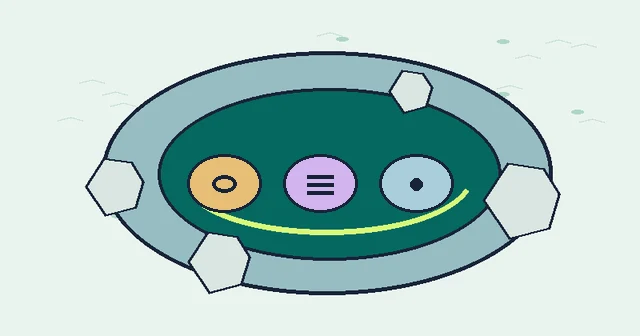
Reveal the clue or choose a marker.
Technical · Carry the same rule into an engine
In the 3D example, raycasting identifies the marker you tap.
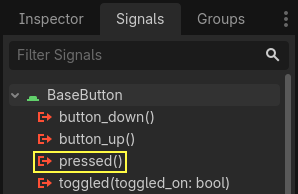
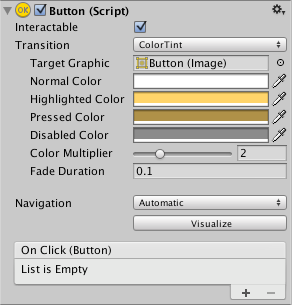
Start with the same goal, button labels, image, and state map. In Godot, connect a button signal to the response. For Unity, try a UI Button click. In Unreal, use a UMG Widget Blueprint for the controls.
 View full size
 View full size
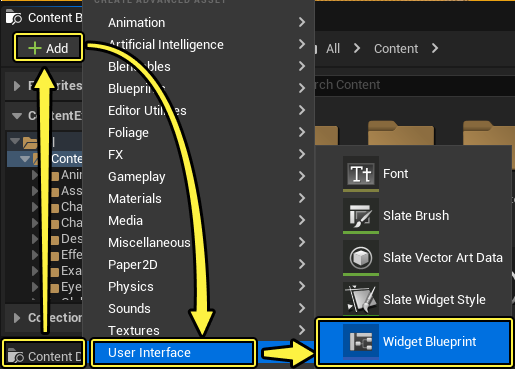 View full size
Keep the browser version as a reference and try one rule in the engine first. The download has browser source and a state map you can carry over. Godot · Signals · Unity · UI Button · Unreal · UMG quick start
History · Spacewar! and player control
In Spacewar! on the PDP-1 in 1962, players steered their ships while the program applied gravity near a star. Name one thing your player controls and one thing the scene does on its own. Computer History Museum · Spacewar!
Browser starter and repair copy
Download the working prototype, a repair exercise, and a state map you can reuse in a different tool.
Play from this page on an iPad. To edit the files, extract the ZIP, then use a browser editor that previews the full folder or a text editor and browser on a lab computer. Open the ZIP on your device.
Start by changing the visible text on the Reveal clue button in index.html. Keep its reveal-clue ID so the click handler can still find it. When you’re ready, swap the picture or change the solution and clue together in scene.js. Play from start to reset after each edit.
Trace the clue button through the files · Compare the working and broken copies
Research one question at a time
A good question names what you want the audience to understand. Use a reference to suggest one change. Compare both versions with the same goal and record what happened.
Example · People missed the clue
- Question. Do visitors notice the clue after tapping?
- Reference. Compare the immediate and animated reveals in the feedback lab.
- Test. Try a still reveal and a short animated reveal using the same artwork and words.
- Evidence. Record where the visitor looked first in each version.
- Decision. Keep the version that directs attention to the clue. Test the same cue on the projector next.
One sketch, screenshot, clip, or playtest observation can show the evidence. Reuse this note during the midterm and final.
Midterm · Make one scene respond
Build one group scene with one meaningful choice and a clear response. Give each teammate a defined contribution in art, motion, interface, integration, or audience testing. In a 16-week term, aim to finish around week 8.
- Plan. Agree on the goal and make a paper state map. Decide who owns each asset and where to put the files.
- Build. Make the panels and one response. Put them into a playable browser draft and exchange working files.
- Test and revise. Watch a visitor try it without coaching. Look at it on an iPad and at room scale when a projector is available. Each student records one test and what it changed.
Keep the paper plan, playable draft, revised version, editable assets, and individual research notes. Copy the R&D note
Before the handoff. Have a teammate open the draft from a fresh copy. Check that the art loads, the choice works, and the scene can start over.
Final · Design an experience for an audience
Choose a small interactive comic, game, projected installation, or explainer. Aim for one complete experience that another person can try. In a 16-week term, reserve the last six weeks for the final.
- Week 11 · Pitch. Describe the audience and goal. Thumbnail the experience and choose one question to research.
- Weeks 12–13 · Prototype. Build one complete interaction early. Have somebody else try it and save the evidence.
- Weeks 14–15 · Revise. Change one part based on the test, then compare the new version with the old one. Check the result on the intended screen or surface.
- Week 16 · Share. Deliver a playable version, editable files, asset credits, and a short note explaining the change you kept.
The browser works for delivery. An engine can support projects that benefit from movement, navigation, or spatial design. Engine reference links · Package the project folder for hand-in